TP-Link Deco
- 4.7
- Rating
- 10.00M
- Installs
- Free
- Price

 Analysis by App-foxy
Managing home Wi-Fi usually becomes important at the least convenient moment: someone is trying to join a video call, a child is watching a lesson, a guest needs the password, and one room has suddenly become a dead zone. I spent time using TP-Link Deco as a household network tool, and my main impression is that it makes the everyday side of mesh Wi-Fi much less intimidating. It is not a replacement for every router setting, but it gives ordinary users a clearer way to install, monitor, and coordinate a compatible Deco system.
That distinction matters. This is not a general-purpose internet speed booster that can transform any router. It is an app from TP-LINK SYSTEMS INC. built around the company’s Deco mesh Wi-Fi equipment. If you already own compatible Deco units, it can turn a multi-device setup into something you can manage from a phone. If you do not have Deco hardware, the app’s usefulness is naturally limited. I would think of it as the control panel for a particular home networking ecosystem rather than a standalone networking solution.
How it feels in a busy shared home
My favorite use case is a home where several people share the same connection but do not share the same technical confidence. One person may understand router terminology, while everyone else just wants the internet to work. The Deco app helps shift routine tasks away from a web browser full of unfamiliar menus. Instead of asking a relative to find an IP address or decipher a router dashboard, I can use the phone-based interface to handle the network in a more approachable way.
You May Also Like

 Blood Strike: 2.5 Anniversary
Blood Strike’s Loadouts Turn Every Drop Into a Tactical Gamble
A close look at Blood Strike’s custom loadouts: how fast access to signature weapons reshapes its battle royale rhythm, rewards preparation, and narrows the gap between fights.

 Pandora - Music & Podcasts
Pandora’s Music Is Easy to Start, but Harder to Recover
Pandora’s strength is its low-effort path from a seed to a station. Its weak spot is how much confidence it asks you to place in connection, setup, and quiet recovery.

 8 Ball Pool
 Is Built on Rivalries, Rematches, and Routine
A close look at the rivalries, rematches, shared routines, and unanswered safety questions that turn a quick pool match into a persistent mobile community.

 Samsung Music
’s Quiet Strength Is Playing What You Already Own
Its reach comes less from spectacle than from dependable access to a personal library. That simplicity is both the app’s strongest retention engine and its ceiling.

 AccuWeather: Weather Radar
AccuWeather Review: A Quick, Clear Forecast for Everyday Decisions
For everyday plans, the best forecast is the one you can understand quickly. AccuWeather makes rain timing, radar, and local conditions easy to act on, with a few trade-offs.

 Hill Climb Racing
Why Hill Climb Racing Still Turns Crashes Into One More Run
A tiny car, a bumpy hill and one more upgrade: Hill Climb Racing keeps resurfacing because its simple chaos makes every near-miss feel personal.
More From Our News Desk



Imagine a shared evening at home. A parent is working from a laptop, another adult is streaming a show, a teenager is gaming, and a visitor asks for Wi-Fi access. The useful part is not a dramatic visual effect; it is having one place to see the network and deal with ordinary changes. I can check which devices are connected, identify a phone or television that I had forgotten was online, and make better decisions about what should remain connected. That visibility is more valuable than it sounds when several people use the same connection.
The app is free to install, and it is listed for Everyone, which fits its role as a household utility rather than an entertainment product. It has also reached over 10 million installs and holds a 4.7 average from around 242 thousand ratings, so it is clearly familiar to a large Android audience. Those figures do not guarantee that every home will have a smooth experience, but they do suggest that the basic workflow has been useful to many people.
I would not install it expecting the app alone to improve coverage. Coverage depends on the Deco hardware, its placement, the construction of the home, interference, and the internet service coming into the property. The app can help me organize and manage that system, but it cannot overcome a poorly positioned unit or a slow broadband plan by pressing a button. That is an important boundary to understand before buying into the setup.
What the first setup asks from you
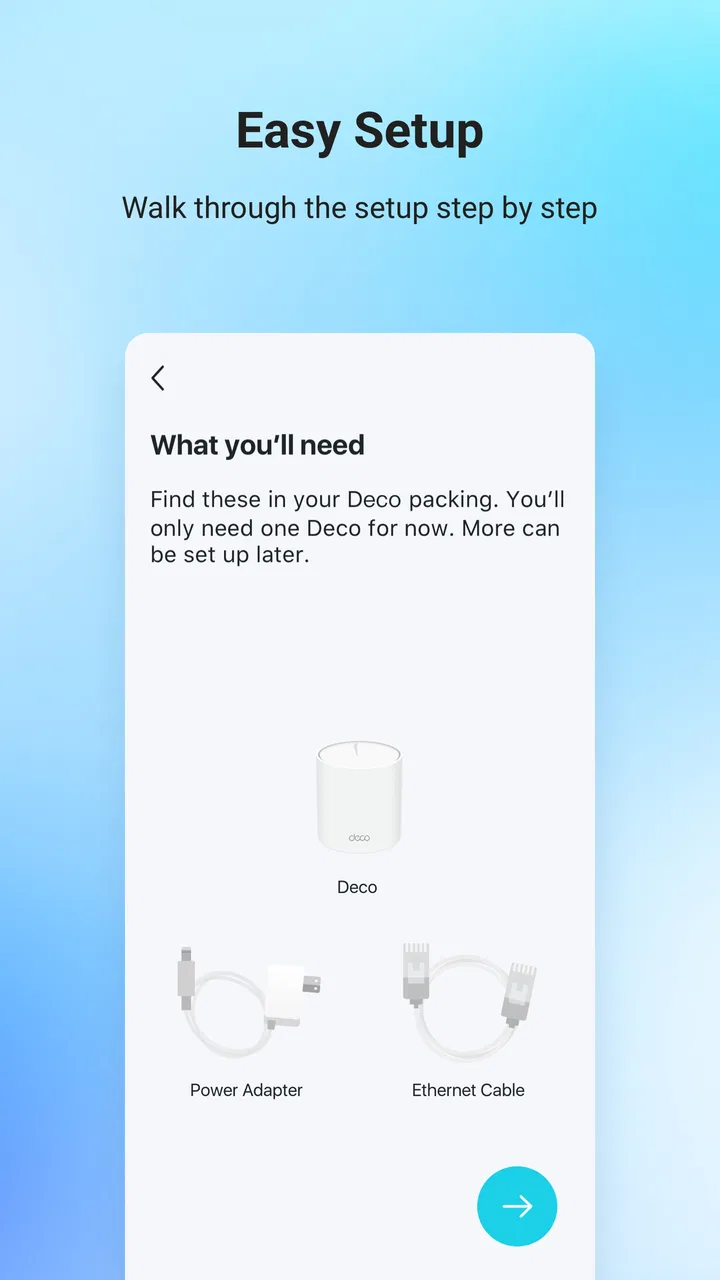
The initial experience is designed around installing a Deco network rather than adding an arbitrary router. I need the hardware available, a working internet connection, and enough time to follow the instructions carefully. The phone becomes the guide through the process, which is friendlier than starting with a blank browser page, but it still helps to know where the modem or existing gateway is located and which cables are connected.
My practical advice is to decide on the network name and password before beginning. In a shared home, changing those details later can create a small wave of complaints: phones, televisions, printers, speakers, cameras, and laptops all need to reconnect. A little planning avoids making every resident repeat the setup. I would also label the physical Deco units mentally or with a simple note, especially if several look identical. When the app shows a device or location, knowing which unit is in the office and which is in the hallway makes troubleshooting far easier.
The app’s setup guidance is helpful, but it does not remove the need for sensible placement. A mesh point hidden behind furniture, placed beside dense electronics, or installed at the far edge of a weak signal may not perform as expected. I prefer to place the additional unit where it can still communicate reliably with the main unit, rather than treating it like a magic satellite that can be dropped anywhere. The app can support the decision, but the household still has to make the physical arrangement.
There is another boundary that matters for shared devices: the account used to manage the network. The person who completes setup may become the practical administrator, so I would not casually use a temporary account or a personal login that other household members cannot access when needed. Before finishing, decide who should be responsible for network changes and who merely needs the Wi-Fi credentials. That separation prevents a guest or occasional user from being given more control than intended.
Managing people, devices, and responsibility
Once the network is running, coordination becomes the app’s strongest household benefit. A family does not need everyone to become a network administrator. One person can handle configuration while others receive the connection details they need. This keeps routine use simple and reduces the chance that someone will accidentally alter an important setting while trying to solve a small problem.
I find device identification especially useful in a home with many connected products. A generic device name is not always enough to tell whether it belongs to a parent, a child, a guest, or a smart appliance. Taking a few minutes to recognize the list makes later checks more meaningful. If an unfamiliar device appears, I can ask who owns it before making a change. That is a better habit than immediately blocking anything I do not recognize, because some household devices use names that are not obvious.
For a shared home, this is a subtle but important workflow: first identify, then discuss, then change. The app can show the network from the administrator’s perspective, but it cannot replace communication between the people using it. A roommate may be testing a new device, a guest may have joined with permission, or a television may appear under an unexpected manufacturer name. Treating every unknown entry as suspicious can create unnecessary friction.
The same principle applies when diagnosing complaints. If someone says the internet is slow, I would not begin by blaming their phone or restarting every Deco unit. I would check whether the issue affects one device or the whole home, whether the problem occurs in one room, and whether other residents are experiencing it at the same time. The app gives me a useful starting point for that conversation, while the pattern of the problem tells me whether I should investigate placement, the device itself, or the internet service.
Compared with the usual router web interface, the app feels more accessible for these everyday checks. Traditional interfaces can expose more technical controls, which is useful for an experienced network enthusiast, but they often make simple household coordination feel harder than it should. Compared with a generic Wi-Fi analyzer, Deco is more directly connected to managing the compatible mesh system. A Wi-Fi analyzer may be better for inspecting channels or signal behavior in detail, while this app is better for the owner who wants a practical overview of their Deco network.
Where age and trust change the right approach
Because the app is rated for Everyone, it is suitable as a general household utility, but that does not mean every family member should have equal administrative access. Age is only one factor. A younger child may need the Wi-Fi but should not necessarily be the person changing network settings. An older child may be capable of helping identify devices while still benefiting from a clear agreement about what they may and may not alter.
I would keep the account boundary simple: one trusted adult or designated household administrator manages the system, and other residents receive access to the network without automatically receiving control over its configuration. That arrangement is not a special family feature; it is a sensible way to protect a shared utility. It also makes responsibility clear when a setting changes or a device disappears from the network.
Trust matters with guests too. Someone visiting for an afternoon may only need the Wi-Fi password. They do not need to know the administrator’s account details, and I would avoid handing over the phone while the management screen is open. For roommates, the arrangement may be different: shared ownership can justify more than one trusted person knowing how to handle basic issues, but the household should agree on who can make major changes before there is a problem.
I would also avoid presenting the app as a substitute for a conversation about online safety. Network visibility can help me notice connected devices, but it does not tell me what a person is doing, whether a message is appropriate, or whether a child understands the risks of a particular website or service. Parents and guardians should set expectations directly. The app belongs in the practical layer of home connectivity, not in place of supervision, trust, or age-appropriate guidance.
This is one reason I would be cautious about recommending it to someone who expects a complete family-management platform. The app’s central job is managing the Deco mesh network. A user looking primarily for detailed household scheduling, content supervision, or specialized parental tools should compare those needs against the functions available in their wider networking setup rather than assuming that a mesh management app will cover them all.
Small habits that make the app more useful
The first useful habit is to keep the device list understandable. When I recognize the important phones, computers, televisions, and smart-home products, the app becomes a practical household map instead of a confusing stream of names. I would update my own notes whenever a family member replaces a phone or adds a new device. That small effort pays off during troubleshooting, because I can distinguish a real change from a familiar device that simply reports a different name.
The second is to use the app as a coordination tool before moving hardware. If one room has trouble, I would first look for a pattern: does the issue follow one device, affect everyone in that room, or appear throughout the home? If only one device struggles, moving Deco units may be unnecessary. If several devices in the same area struggle, placement becomes more plausible. This avoids the common mistake of rearranging the whole mesh based on one poorly configured laptop or phone.
The third is to plan maintenance around the household rather than making changes at random. A network adjustment during a work meeting, school session, or important call can create needless frustration. I prefer to tell everyone before making changes and to wait until the home is not relying heavily on the connection. That is particularly helpful when one person owns the account but several people depend on the network.
A fourth insight is to separate network ownership from technical support. The person who manages the Deco app does not have to be the only person who can help. I can show another trusted adult how to recognize the main unit, locate the basic network information, and report what they see without giving them unrestricted control. This creates a useful middle ground between total dependence on one person and giving administrator access to everyone.
Finally, I would treat in-app purchases as a decision point rather than assuming every household needs them. The app is free, but its listing includes in-app purchases ranging from $2.99 to $159.99 per item. I would review any optional paid function carefully and decide whether it solves a real need for this particular home. A family should not spend simply because a premium option is visible, especially when the basic purpose is already covered by managing the compatible Deco equipment.
Performance expectations and everyday friction
The app is at its best when I want a clear, phone-friendly way to handle a Deco network. It is less satisfying when I need deep technical diagnosis. A network enthusiast who wants extensive manual control, detailed logs, or a highly configurable environment may prefer a more advanced router platform and its administration tools. Deco’s appeal is the reduction of complexity, and that same simplification can feel limiting to someone who enjoys tuning every part of a network.
There is also a hardware commitment. The app makes the most sense when the home is already using Deco units or when someone has decided that this ecosystem fits their needs. If I am comparing unrelated routers, using a single access point, or trying to manage equipment from several manufacturers in one place, this is not the universal dashboard I would choose. A manufacturer-specific app is convenient inside its ecosystem but less flexible outside it.
Compatibility with the phone matters as well. The current version is 3.10.489, and the Android requirement is version 7.0 or later. That covers many devices, but anyone using an older phone should check compatibility before planning the setup around it. I also prefer to keep the phone’s operating system and the app current when possible, since networking tools depend on reliable communication with the equipment and account services.
In daily use, the biggest friction is not usually tapping through the app; it is understanding what the information means. Seeing a connected device does not automatically explain why a connection feels slow. Seeing a mesh unit online does not prove that its location is ideal. The app can make the network visible, but I still need to interpret that information calmly. Users who expect one screen to diagnose every internet problem may find the experience less decisive than they hoped.
That said, I appreciate that the interface is aimed at ordinary household decisions. I would rather have a manageable overview than a wall of technical terminology when helping a family member from another room. For most homes, the trade-off is reasonable: less granular control in exchange for a more approachable way to install and maintain the system.
Who should choose it, and who should look elsewhere?
I would recommend TP-Link Deco to someone who owns compatible Deco hardware and wants to manage it without living inside a router’s technical dashboard. It is particularly suitable for shared homes where one or two people take responsibility for the network while everyone else simply needs dependable access. The app’s value grows with the number of connected devices and the number of people who need clear coordination.
It also suits a user who is nervous about mesh installation. The guided approach is more welcoming than configuring separate access points manually, and the phone-based management model is convenient for checking the household network during normal routines. A small home may not need every mesh-oriented capability, but the app can still make the system easier to understand if Deco hardware is already the chosen equipment.
I would hesitate to recommend it to someone who wants to mix several brands under one management system. I would also steer advanced network users toward a platform with more manual controls if their priority is deep diagnostics, custom routing, or extensive experimentation. Likewise, a parent shopping specifically for a comprehensive child-safety suite should not assume that a mesh management app alone will meet that goal. The right choice depends on whether network organization or broader digital supervision is the main problem.
People with unreliable broadband should keep their expectations realistic. A well-managed local network can still be useful, but it cannot repair an outage or increase the speed supplied by the internet provider. Similarly, if the home’s problem is caused by a damaged cable, a failing modem, or a device with its own wireless fault, the app may help narrow the situation without being able to fix it directly.
My household verdict
After using it as a home networking companion, I see TP-Link Deco as a practical bridge between complicated router administration and the simple expectation that Wi-Fi should work everywhere people live. Its strongest contribution is organization: setting up a compatible mesh system, recognizing connected devices, and giving a designated household administrator a clearer view of what is happening.
The app is free, developed by TP-LINK SYSTEMS INC., and its Everyone rating makes sense for a general-purpose Tools app. Its broad adoption and strong 4.7 average are encouraging, but my recommendation rests more on the fit between the app and the household. If Deco hardware is part of your home, this is the natural management companion. If you need a brand-neutral control center or advanced network engineering tools, I would choose differently.
My final advice is to decide the household boundaries before installing: who owns the account, who may change settings, how guests receive access, and how residents will report connection problems. That preparation turns the app from a remote-control screen into a useful shared routine. For a Deco-based home that values simple coordination over limitless technical control, it is a sensible and approachable choice.
FAQs for TP-Link Deco
01What is TP-Link Deco, and what does the app do?
TP-Link Deco is a companion app for managing TP-Link Deco mesh Wi-Fi systems. After installing it, you can set up compatible Deco units, name your network, create passwords, check connected devices, run basic network tests, and view system status. The app is designed to make mesh-network management easier for home users, although the available tools and screens can vary depending on your Deco model and firmware version.
02Do I need a TP-Link Deco device to use the app?
Yes. The TP-Link Deco app is primarily intended for configuring and managing compatible Deco mesh routers, so it offers limited usefulness without Deco hardware. During setup, you normally create or sign in to a TP-Link account and connect the app to your Deco system. Before downloading, check that your specific Deco model is supported, because features and compatibility may differ across product generations and regions.
03Can TP-Link Deco improve my home Wi-Fi coverage?
The app itself does not increase Wi-Fi range; the improvement comes from installing multiple Deco units in a mesh system. The app helps you place and configure those units, monitor their connection, and identify areas where coverage may be weaker. Actual performance depends on your internet plan, home layout, wall materials, interference, device placement, and whether the Deco units use wireless or Ethernet backhaul.
04Does TP-Link Deco include parental controls and security features?
Many compatible Deco systems provide features such as device profiles, internet pausing, content filters, schedules, and basic network-security tools through the app. However, the exact options may depend on the model, firmware, subscription status, and TP-Link region. Some advanced security or parental-control functions may require a paid HomeShield plan, so review the in-app terms before relying on a feature.
05Is the TP-Link Deco app easy to set up, and what permissions does it require?
Setup is generally straightforward: connect the main Deco unit to your modem, open the app, follow the guided instructions, and add additional nodes when prompted. The app may request permissions such as local-network access, Bluetooth, location, or notifications, depending on your phone and setup method. These permissions help discover and configure devices, but you should review them and enable only what you are comfortable using.
Pros
- Simple setup through the mobile app
- Strong whole-home Wi‑Fi coverage with compatible units
- Supports seamless roaming between Deco nodes
- Parental controls help manage devices and online access
- Works with many existing TP-Link Deco models
Cons
- Some advanced features require a paid HomeShield plan
- Limited configuration options for experienced network users
- Performance depends heavily on node placement and backhaul
- Certain features vary by Deco model and firmware version
- Requires a TP-Link account for full app functionality

TP-Link Deco
Gallery